3. Building Rules
Warning
This document has been marked for deprecation. The information in the article may be outdated.
3.1. What does 1:1 scale mean? How big is a Minecraft block irl?
1 Minecraft block = 1 meter in real life or 1.0936133 yards
For other units check out the Minecraft Distance Measurement section
There are however stretched locations. Due to the fact that the world is not flat, some locations in the world will be stretched a bit. This is a math problem that has been worked on for hundreds of years, and we knew this going in. This means that in some places, the ratio might be 1:1.25 or even higher, meaning the buildings and distances will be larger compared to other locations in the world. You will have to research this at your location, and build accordingly. You will also have to increase the height of your building by the ratio of the location, to make sure the building does not look stretched. A safe way to do it, is to add everything to the OpenStreetMap, as this will place the buildings exactly as they should be. [a]
3.2. General Rules
See the Discord #rules for more information:
No Ethnocentrism.
No NSFW.
Keep it as close to real life as possible.
Upload your world file regularly (weekly/ biweekly/ monthly) to the website.
If you are unable/unwilling to go on building your plot do this.
Do not build outside your claimed border, as those buildings will not be included in the final world. Here is how you find the borders of your plot.
3.2.1. Things you are allowed to do but might be unsure about
You are allowed to change the building outlines and roads sizes to make them look more like the real world (remember that outlines that are completely wrong should be edited in OSM first.)
- You are allowed to change the biome to fit the biome in real life.
The biomes are randomly generated, so they are not going to be close to how it is in real life.
Trees, caves, grass and some terrain blocks (example water) are generated automatically, and you can change these.
You are allowed to use custom heads for detailing.
- You are allowed to use mods that create buildings from an api. This is basically a program/mod that creates the outlines from the information online. Always double check the buildings after you are done. Here are some mods that might help: Building outlines/ shells.
We’re looking to get API building rolled out to the entire community in the future
You can build cars if you keep them in the right scale.
Lesser know blocks that you are allowed to use:
Custom heads, custom banners, structure blocks, double sandstone slab, double smooth stone slab.
3.2.2. Things that you are not allowed to use/do:
Do not rotate buildings so they are straight in Minecraft (You can make small adjustments if absolutely necessary but try to keep the orientation of buildings as the outlines show)
You are not allowed to add new blocks that are not in the default game
You are not allowed to have command blocks in your final build you can use them to spawn ing banners and heads
You are not allowed to use custom maps
You are not allowed to use minecarts
You are not allowed to use boats
You are not allowed to use item frames
You are not allowed to use any type of mob
You are not allowed to use armor stands
You are not allowed to use paintings
You are discouraged from using any storage blocks such as shulker boxes and chests in your builds because they do not render at a distance (you can still use them if you wish though)
3.2.3. Things that make the world look better:
Try to replace the grass floor in the building with stone or concrete.
Cover your windows with glowstone or sea lanterns to create a nice effect during the night.
For bigger buildings think about creating an inner shell (otherwise you can look right through the building)
3.3. Do we build the interiors of buildings?
This depends on the type of building you are building. For public buildings of interest (tourist attractions, cathedrals ) it would be great if you would include the publicly accessible parts of the interior.
For buildings with public sections (lobbies, restaurants etc.) you are welcome to build the publicly accessible parts of the interior.
For private homes, schools and all areas not accessible for the generals public please do not build any parts of the interior.
3.3.1. Why do we not build interiors of private buildings?
The main reasons for this are privacy and security. The interiors of many buildings are sometimes critical information that and making them available for the public can present security risks. If an area is not accessible to the public there usually is a good reason why. Building restricted interiors can put the BTE project in serious trouble in the long run.
3.4. How do I find the borders of my plot in Minecraft?
Knowing the exact borders of your plot is important as the submission system only submits your exact plot. Anything that is build outside your plot borders will not be transfered into the final world. See What do I do if a building is on the border…
Unfortunately an integrated plot marker system is not included in the modpack yet.
Firstly you have to find the corners of you plot and then mark the borders between the corners outside of your plot.
There are 2 ways to find the corners
3.4.1. Method 1
Go to the website and log into your “MyBuildTheEarth” account
Open the region you want to find the borders to.
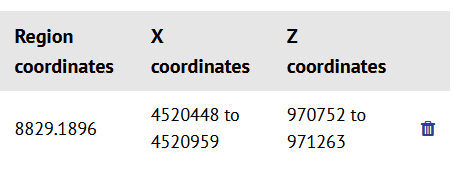
/tp [username] 4520448 [y-coordinate] 970752/tp [username] 4520448 [y-coordinate] 971263/tp [username] 4520959 [y-coordinate] 970752/tp [username] 4520959 [y-coordinate] 971263
Choose a sensible y-coordinate (it will be in meters above sea level)
3.4.2. Method 2
There will be a faster version of this being released by the development team, but for now, this is what we have.
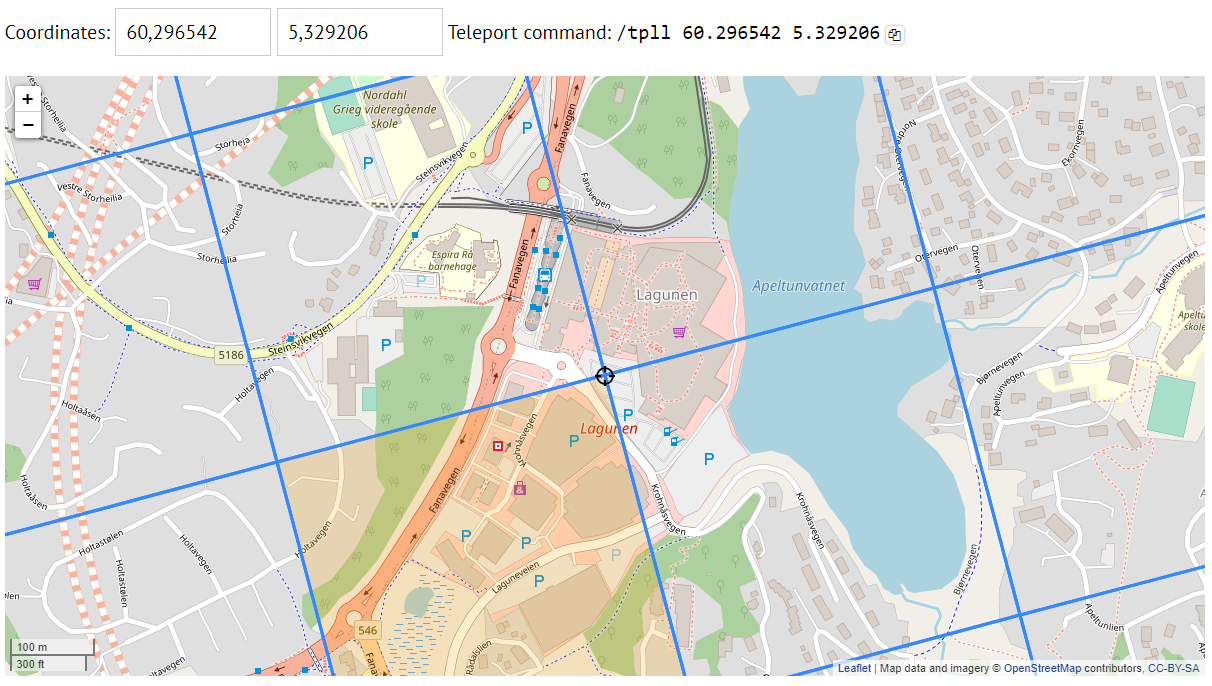
Log onto the website, and find your claim on the map
Move the center of the map to one of the corners, and use the
/tpllcommand above the map.
After you have found the corners of your plot:
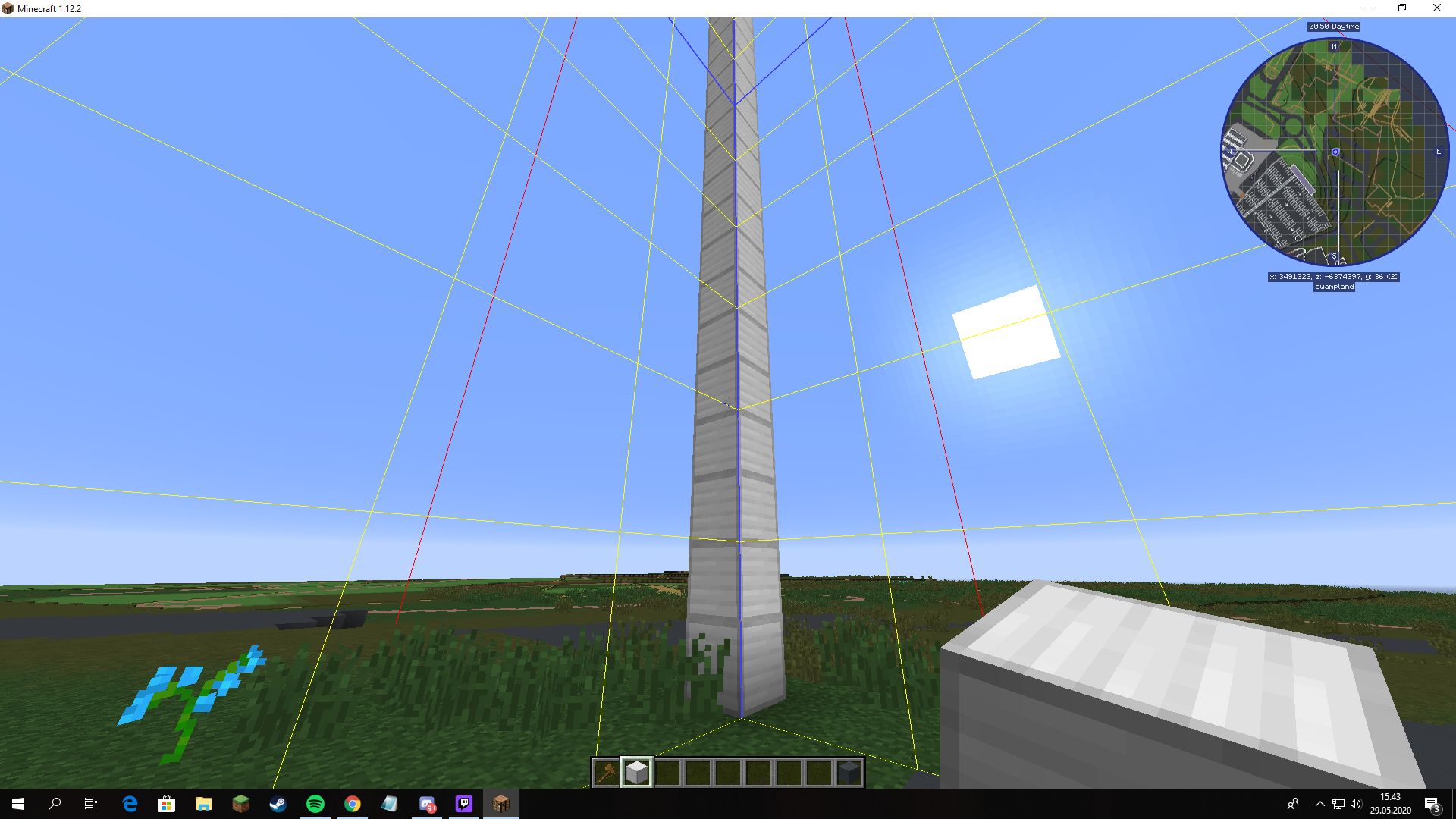
When you have teleported to your corner location, you can do [F3] + [G]. This will bring up the chunk borders.
I am now standing on the inside of the claim, and then I build a pillar about 20 blocks tall on the corner outside of the claim, like this. If you place it on the inside, it will be in the world file when you upload it, and we do not want that.
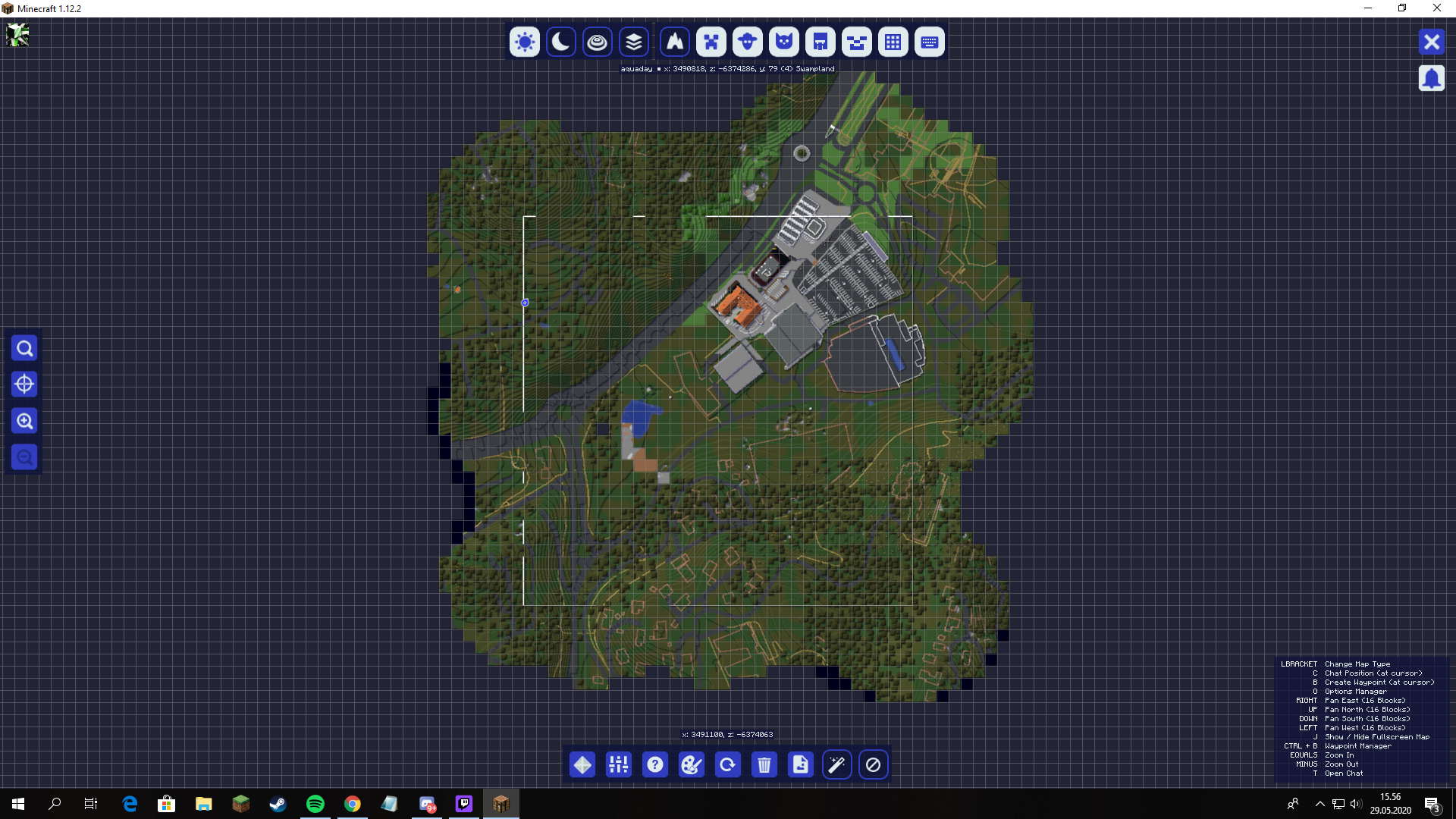
Then you can repeat step 2 to 4 until you have done all the corners. When that is completed, you can use WorldEdit with the
//line [Block-id]command, to create a line from each corner. This will create a line of blocks outside of your claim, so you know to stay inside the borders.
3.5. What do I do if a building is on the border to another plot that you do not own?
When you submit your world your plot will be cut at the borders of your plot so by submitting a single plot only half the house will be in the final world
The best solution is to claim the other plot and build it as well.
If the neighboring plot is already claimed. Arrange with the builder of that plot about which of you builds the building (Setup a local server or exchange worlds to make sure that the house fits on both plots.)
Do not build the house and wait for someone else to claim the plot and come to you to arrange the situation as in 2. (This is the least favorable solution because it relies on the other person following the same guideline which might be changed in the future and it relies on you keeping in contact with the project until someone claims the plot.)
3.6. What do you do if you are unable/unwilling to finish your plot?
Upload your world file on the website.
Notify a reviewer (DM them) and tell them that you are not going to finish your plot and that you have uploaded your world file.
3.7. How do I upload my world file?
Your world file is located in the following directory:
Windows:
C:/Users/[username]/Appdata/Roaming/.buildtheearth/saves
Appdata is hidden as per default so search for %appdata% if you can’t see it.
Mac:
~/Library/Application Support/.buildtheearth/saves
Go to the website and log in to your “MyBuildTheEarth”-account
Either select “Upload my world” in the “MyBuildTheEarth”- dropdown or open our region and select “Upload my world” at the top
Search for the world file
Select the regions that are included in this upload
(not implemented yet) Select “region completed” if you are completely done with building in this region [b]
Click upload and wait for the upload to complete
Footnotes